ZeroDay Dev Docs for iPhone and Android Cybersecurity Learning
These docs explain how ZeroDay Dev works: a real-exploit training app covering vulnerable-code drills, incident analysis, Solidity, Rust, DeFi, exams, Deep Dives, widgets, and glossary practice. The latest curriculum includes 6,000+ challenges and 200+ real-world exploit lessons; see the release preview for rollout status.
Start with the ZeroDay Dev homepage for the product overview, or read the iPhone web3 learning app guide for a plain-language comparison with generic coding apps.
Home
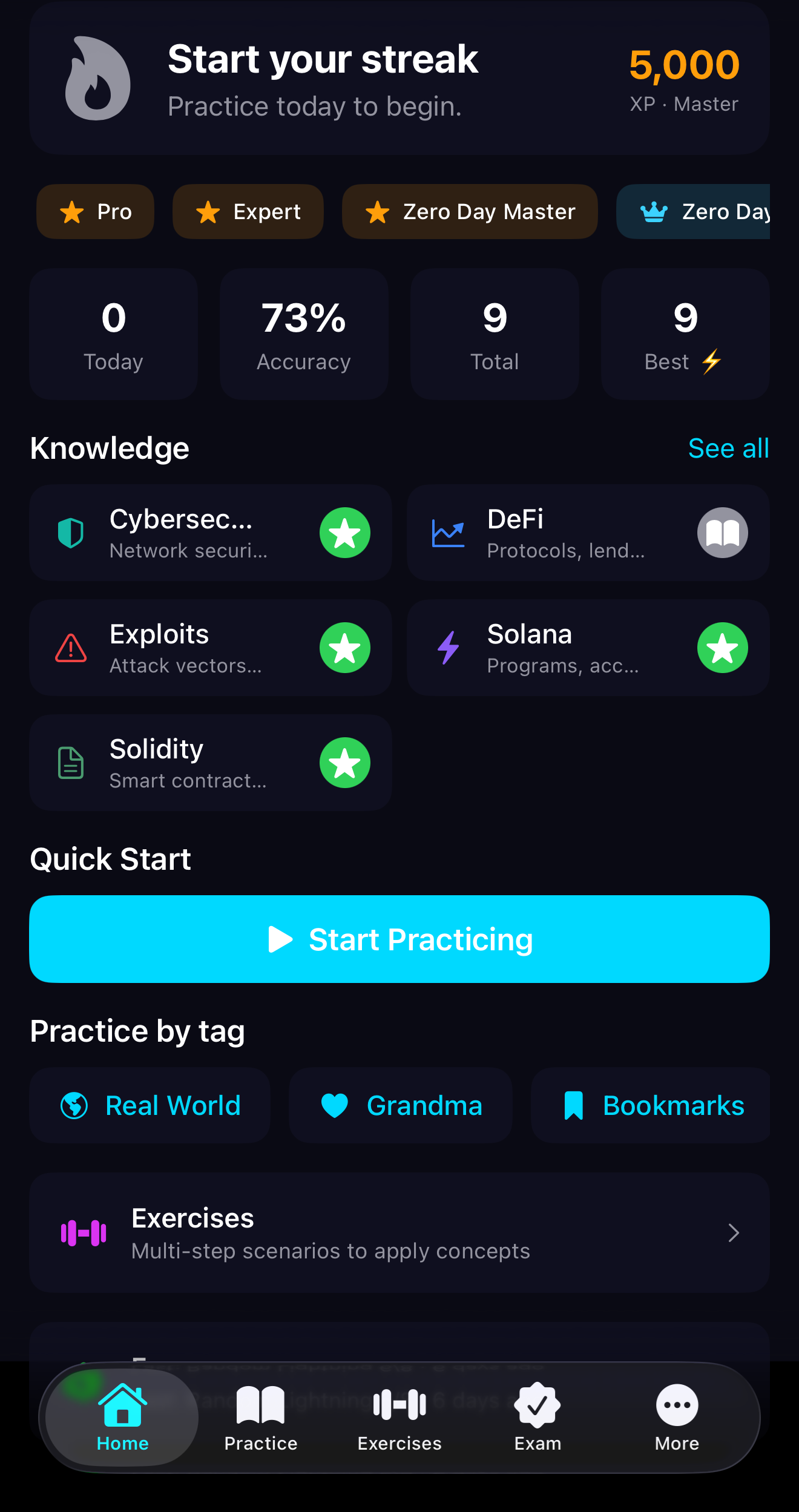
The Home tab is the launchpad for daily practice. It shows your callsign, streak card, mini stats, Deep Dives, practice tags, reference shortcuts, and tutorial checklists.
- Streak card — Shows the current daily streak, momentum prompt, and XP/level status.
- Mini stats — Shows today's answers, accuracy, total answered, and best Lightning Round score.
- Deep Dives — Rows such as Recommended, Cybersecurity, Web3 Exploits, Rust, ZK Proofs, Trading, Solidity, DeFi, Solana, and Machine Learning. Tap Browse for the full catalog or Customize to reorder, hide, or recover shelves.
- Practice by tag — Quick chips for Real World, Grandma, Bookmarks, and other enabled shortcuts.
- Reference — Shortcuts such as EIP Atlas, OpenZeppelin, Protocol Patterns, Chain Comparison, OSI Layers, Modern Cryptography, and Safe Disclosure.
- Tutorial checklists — Guided checklists such as OpSec Safety Checklist and Wallet & Signing track progress directly from Home.
Stats
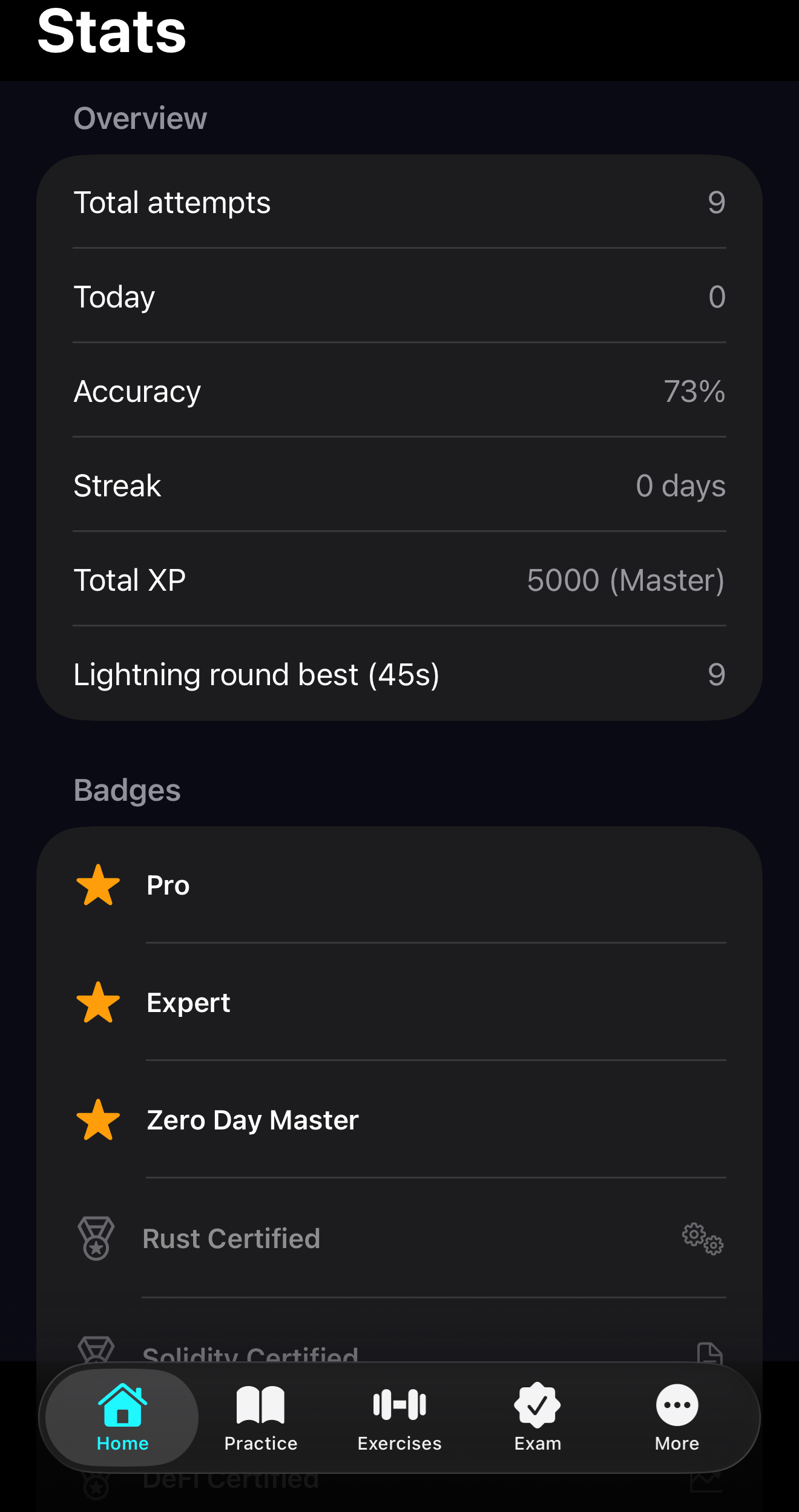
Your progress is tracked locally on your device. No account required. If you delete the app, reinstall without restoring app data, or move to a new phone without a transfer that includes this app’s data, XP, streaks, and history do not carry over automatically—there is no cloud account backing them up.
XP — Earn XP for each question you answer correctly. Use XP to unlock Advanced content and track your level.
Practice
- 3 XP per correct answer.
Exam
- Base 10 XP per correct answer.
- Speed bonus: +5 XP if you answer in under half the time.
- Combo: 1.5× at 3 correct in a row, 2× at 5 correct in a row.
- Difficulty multipliers: Easy 1×, Medium 1.25×, Hard 1.5×, Advanced 2×.
- Length bonuses: Quick +10, Medium +25, Long +75.
Lightning Round
- Base XP per correct answer.
- +15 XP for 5+ correct.
- +25 XP for 8+ correct.
- +50 XP for beating your record.
Streaks — Complete at least one Practice or Exercise question per day. Streaks reset if you miss a day.
- 2 XP/day (1–2 days).
- 4 XP/day (3–4 days).
- 5 XP/day (5–9 days).
- 15 XP/day (10+ days, max).
Level tiers
- Beginner (0–999).
- Intermediate (1,000–2,999).
- Expert (3,000–4,999).
- Master (5,000+).
Home screen — Total XP, daily streak, today's answers, accuracy, total answered, and best Lightning Round score are shown at a glance. Progress is stored locally and never leaves your device unless you use optional sync (for example, connecting to a learning dashboard on your own network).
Filters
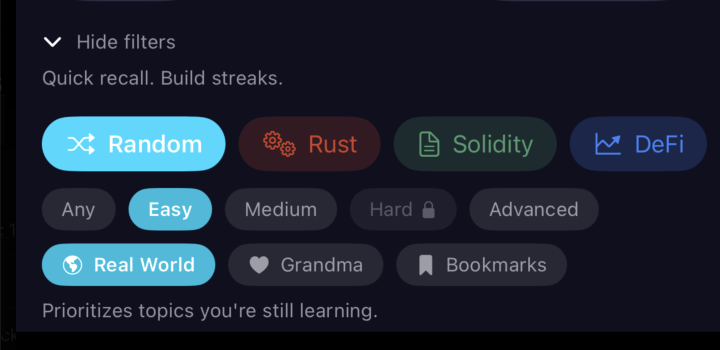
In Practice, tap Show filters to narrow which questions you see.
- Domain — Filter by topic: Exploits, Solidity, Rust, DeFi, Solana, and more.
- Difficulty — Filter by difficulty (e.g., Advanced). Advanced questions require enough XP to unlock.
Tag toggles — In addition to Domain and Difficulty:
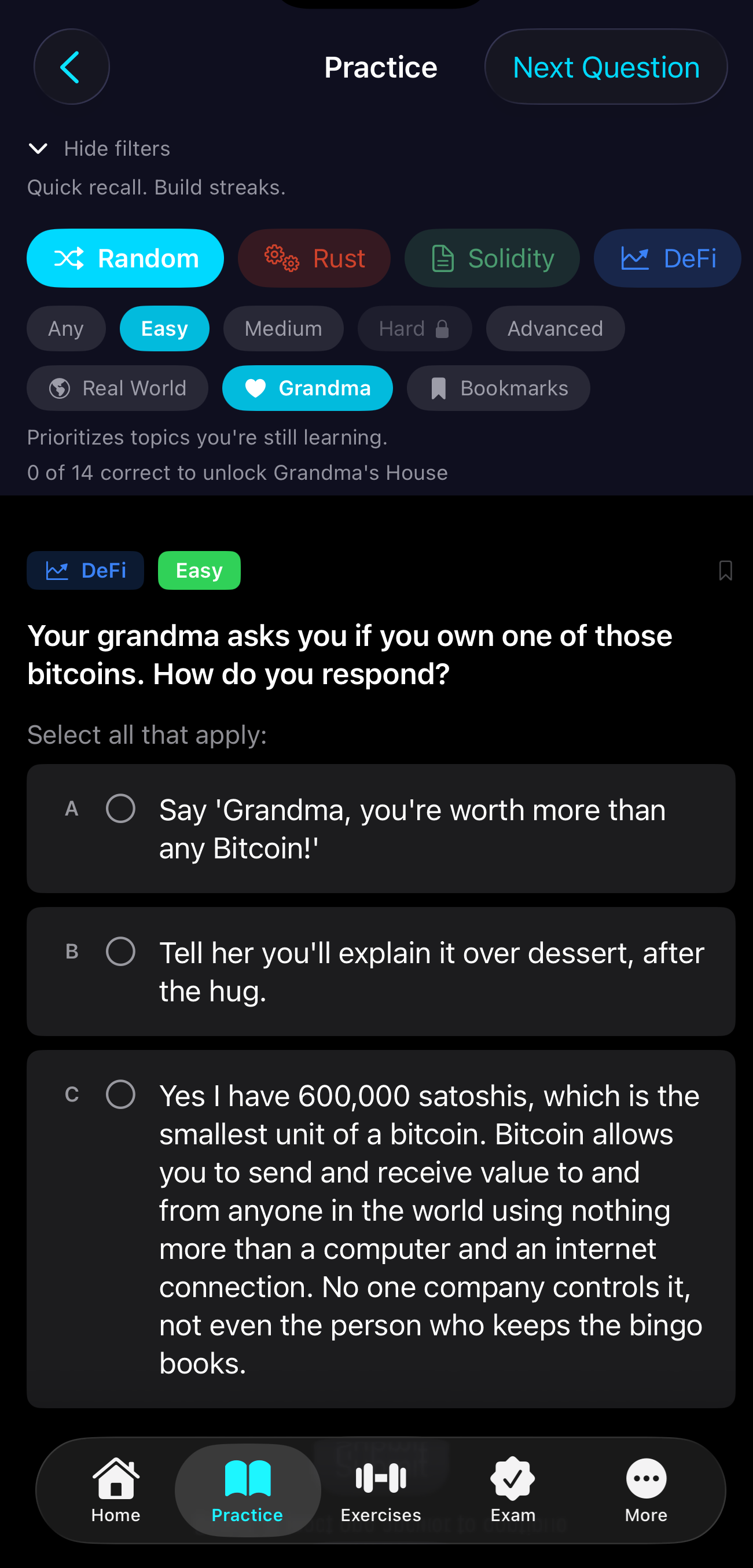
- Grandma — Show only Grandma (beginner-friendly) questions.
- Real World — Show only questions tied to real-world exploits and incidents.
Filters affect which questions are shown in the queue. Clear filters to see the full question set again.
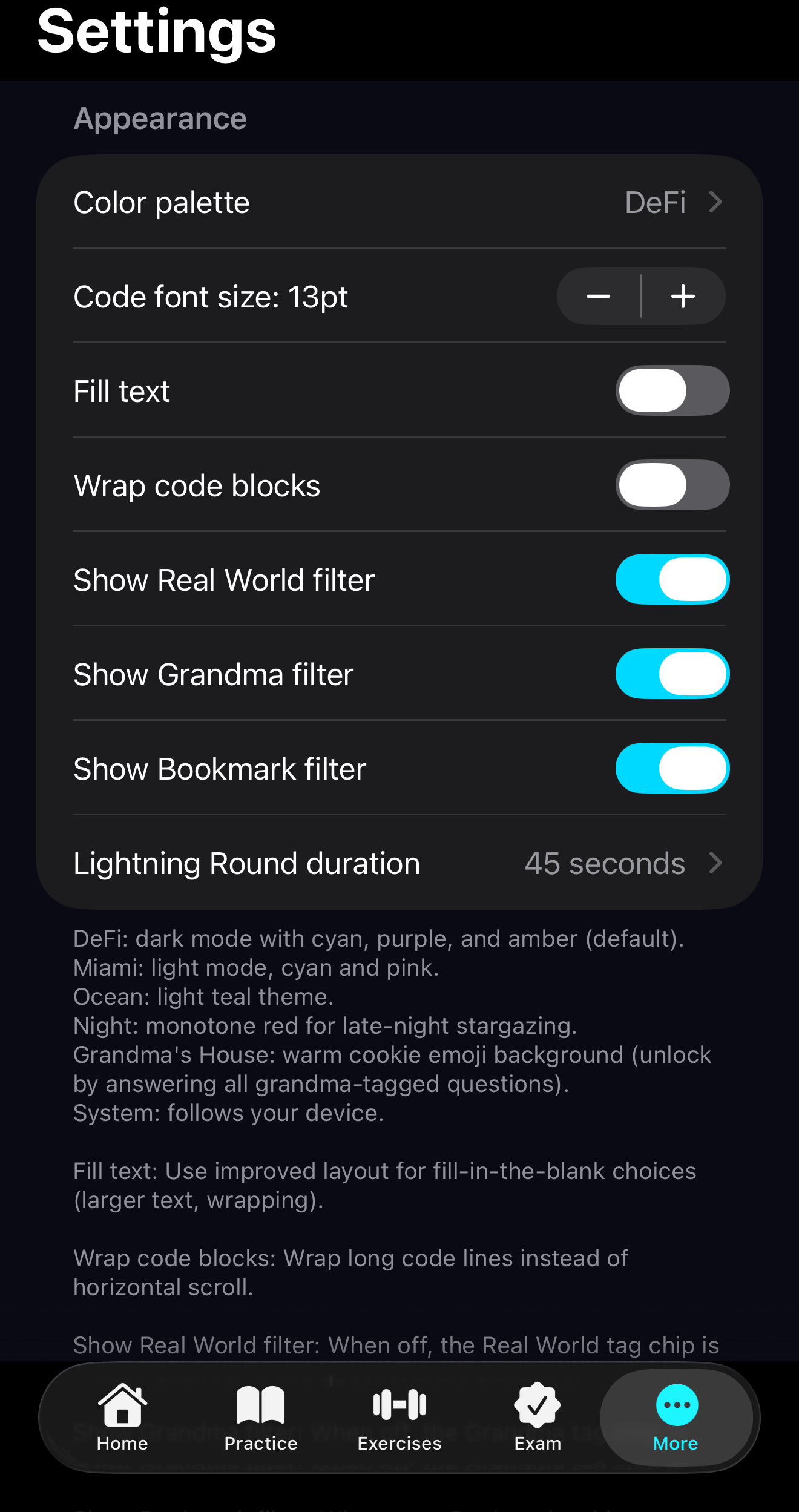
Why am I seeing only a few Advanced Exploits questions? Some question pools are hidden by Settings toggles. If Show Real World filter or Show Grandma filter is off, Practice and Exercises may cycle through a much smaller pool.
When Practice or Exercises says you've completed all questions and begins cycling, your active Settings toggles may be narrowing the pool. For the largest pool, enable Show Real World filter (and Show Grandma filter if needed) in Settings, then keep domain, difficulty, and tag filters broad (e.g., Tag = Any).
Badges
Badges reward consistency and milestones.
- Streak badges — Earn badges for maintaining streaks (e.g., 7-day, 30-day).
- XP milestones — Level up and unlock badges as you accumulate XP.
- Domain badges — Earn a "Domain Certified" badge (e.g. "Rust Certified") by completing 3 exams with 80%+ in the same domain. Domain-specific exams only (not Random or Lightning Round).
- Special badges — First exploit solved, exam completion, and other achievements.
View your badges in the More tab.
Domains
Content is organized by domain. Each domain covers a specific area. Below is a breakdown of what you'll find in each.
Exploits (real-world browse)
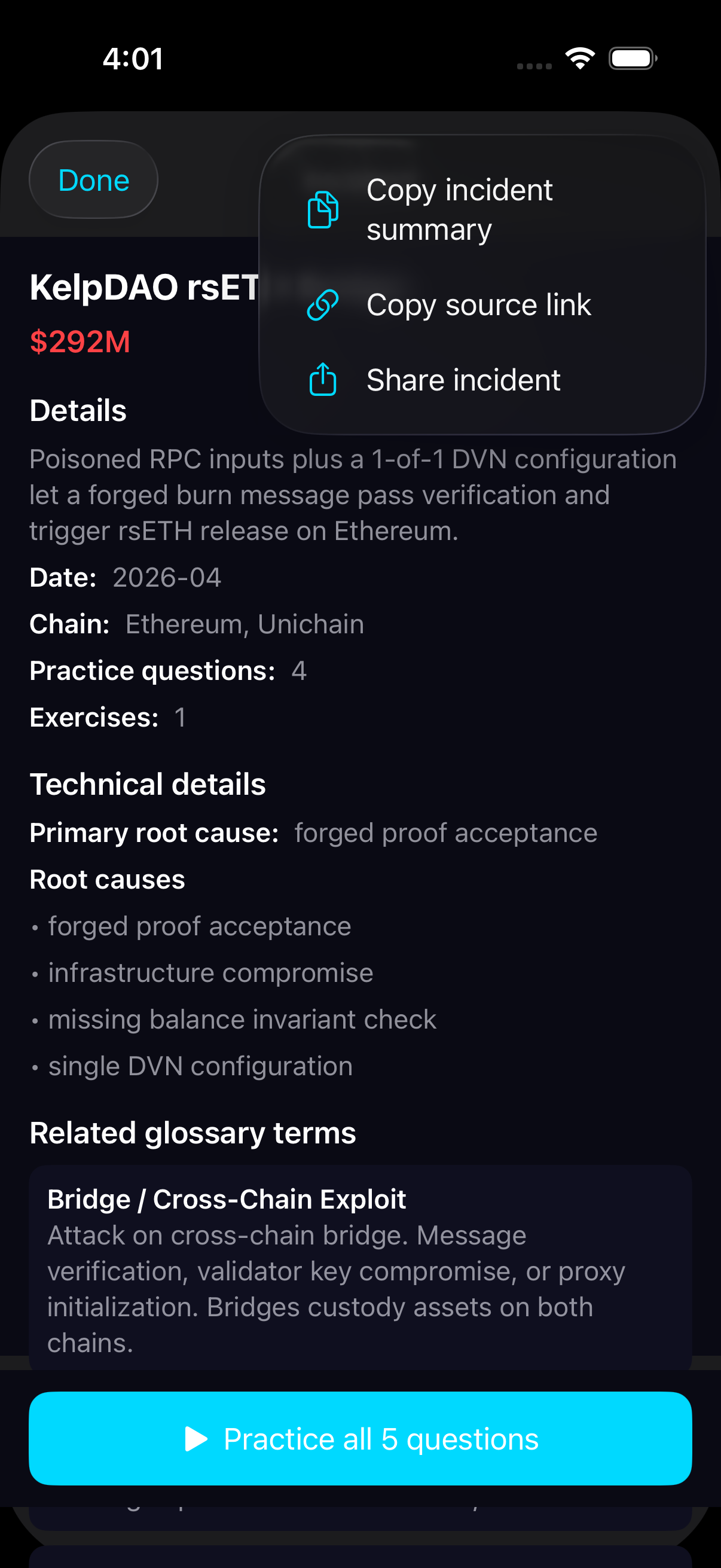
The Exploits tab lets you browse real-world incidents by protocol, date, and amount. Tap an incident to see its summary, then jump into the practice flow and exercises for that exploit. It's separate from generic Practice—here you're exploring verified incidents first, then drilling into them.
Tap the copy icon in the top right of any incident to copy its summary to your clipboard. Use it when you want to share an exploit note, paste it into a study doc, or compare the root cause with a related reference card.
Copy actions are also available in reference areas such as EIP Atlas and Protocol Patterns, so the same share workflow works for incidents, standards, and design notes.
Exploits
Real-world exploit patterns and incident analysis. Learn from verified incidents.
- Reentrancy — Classic, cross-function, read-only; checks-effects-interactions; reentrancy guards.
- Oracle manipulation — Spot price manipulation, TWAP bypass, thin liquidity feeds (bZx, Cream, Moonwell, Fuse).
- Flash loans — Governance takeover (Beanstalk), share-price inflation (Indexed Finance), collateral manipulation.
- Proxy races — Uninitialized proxy takeover (Sigma.Money, Polygon clone wallets), CPIMP front-run.
- Real incidents — Beanstalk (~$76M), Indexed Finance (gulp), bZx (Feb 2020), VeilCash (Groth16), Sigma.Money (proxy backdoor), Yearn yETH (solver divergence), Bybit (~$1.5B signing UI spoofing), Truebit (overflow), Litecoin MWEB reorg handling, KelpDAO LayerZero rsETH, and 30+ more. Solana: Pump.fun bonding curve, Wormhole sysvar spoofing, Jito MEV, web3.js NPM backdoor, Token-2022 delegate/recursion, Loopscale RateX, stake pool semantic bug, x402 signature bypass, and more.
Solidity
Smart contract security, EVM concepts, and upgradeable patterns.
- Proxies — Transparent proxy, UUPS, beacon proxy, diamond (EIP-2535); routing, selector clash (CVE-2023-30541), upgrade freeze.
- Storage collisions — Slot derivation, EIP-1967, delegatecall storage;
__gapfor upgrades; diamond storage namespacing. - OpenZeppelin — Upgradeable contracts, initializer pattern, UUPS security, Multicall msg.value, ERC2771 meta-transactions.
- Core security — Reentrancy, tx.origin phishing, checks-effects-interactions; mapping slot layout (keccak256); constructor vs initialize.
- Standards — ERC-4626 vault rounding, EIP-712 signing, ERC-2981 royalties; abi.encode vs abi.encodePacked collision risks.
Rust
Memory safety, ownership, borrowing, and systems programming.
- Ownership & borrowing — Move semantics, references, lifetimes, interior mutability.
- Error handling — Result, Option, unwrap vs expect; propagation.
- Async & concurrency — Tokio, futures, pin/unpin; Axum, Tower middleware.
- CLI & tooling — Clap, stdin/stdout, pipes, JSON processing.
DeFi
Protocol mechanics, AMMs, lending, and oracle design.
- AMMs — Constant-product, StableSwap, Uniswap V3/V4; price impact, impermanent loss, LVR.
- Lending — Collateral, liquidation, health factor; oracle design tradeoffs.
- Oracles — TWAP variants (arithmetic, geometric, tick-accumulator), spot vs median; liquidity checks.
- Vaults — Share pricing, ERC-4626, rounding; solver convergence (Yearn yETH).
Solana
Solana-specific security and program patterns.
- Account model — PDAs, seeds, bump; rent exemption; CPI, signer checks.
- Security — Account validation, type cosplay, reinitialization; signer verification (ed25519, secp256k1).
- Anchor — Constraints, discriminators, zero-copy accounts.
- Real incidents — Pump.fun bonding curve, Wormhole sysvar spoofing, Jito sandwich MEV, web3.js NPM backdoor, Token-2022 (Permanent Delegate, ExtraAccountMetaList, direct execute), Loopscale RateX, owner field reassignment, CPI state staleness, stake pool semantic bug, x402 signature bypass, web3.js DoS. 13 Solana exploits covered across Practice, Exercises, and glossary.
Trading Strategies
Execution risk, counterparty risk, and strategy design.
- Execution — Slippage, liquidity, MEV; delta-neutral, arbitrage, market making.
- Real-world context — Bybit custody risk, GMX share-price manipulation, oracle spikes (Moonwell/Fuse).
Other domains
- Dev Concepts — CLI tools, system design, CS fundamentals.
- Cybersecurity — Network security, web security (OWASP), lab setup (Burp, Kali).
- Machine Learning — Deep learning, NLP, RL, MLOps, AI safety.
- ZK Proofs — SNARKs, STARKs, circuits, Groth16 trusted setup, rollups.
- Bitcoin — Script, consensus, Lightning, fundamentals.
Use filters to focus on one domain or mix them for variety.
Ops & scenarios
Ops runs narrative scenarios: timed, consequence-based sessions. An intro leads into chapters—each chapter combines narrative text with questions. If you fail, you see the consequence, then a debrief with XP and badges. Scenarios are structured runs, not one-off questions.
War Rooms
War Rooms are a scenario flavor: real-incident–style timelines with high pressure. Optional in-session chat can be enabled. They use the same Ops structure (chapters, consequences, debrief) but with a distinct, incident-response feel.
Practice
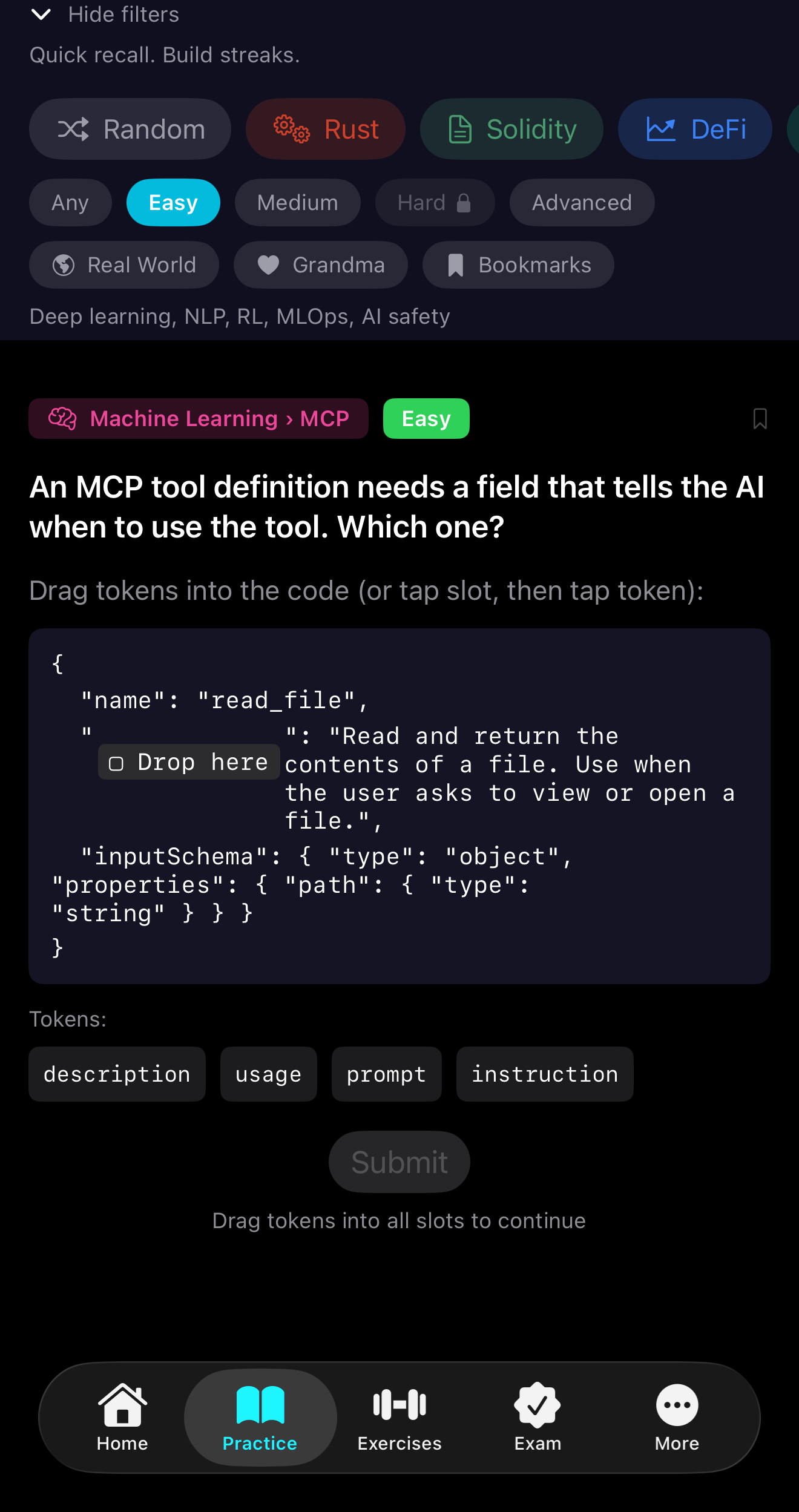
Practice mode lets you build exploit intuition through quick, interactive questions. No reading docs—just tap, drag, or select.
Question types:
- Tap-to-highlight — Tap the vulnerable line, panicking line, or correct answer in code.
- Multiple choice — Select the correct answer from options.
- Fill-in-the-blank — Drag tokens into slots to complete code or definitions.
- Drag-to-order — Arrange blocks in the correct execution order.
- Match pairs — Match terms to definitions (e.g., exploit → vulnerability class).
- Swipe — Swipe left/right to classify (e.g., exploit vs. safe).
Practice exercises — Multi-step exercises appear in Practice mode. Each step is revealed after you answer the previous one. Tap the vulnerable line → explain why → select the correct fix. Partial XP is awarded per correct step. Advanced exercises require 5,000 XP to unlock.
Deep Dive
The Home hub includes a Deep Dive launchpad: curated rows for Web2, Web3, Rust, ZK Proofs, Trading, Cybersecurity, Solidity, DeFi, Solana, Machine Learning, plus Recommended (weak areas / mastery) and Pinned favorites. Open Browse for the full catalog (search, filters, per-track actions), or Customize to reorder shelves, pin or hide tracks, and recover hidden items. You can build custom tracks from bookmarks, missed questions, or selected tags and subdomains. Some tracks include study intros (TL;DR, step-by-step chains, vulnerable vs fixed code, real-world notes).
Recent Deep Dive additions include a lawful privacy hygiene reference track, fund-tracing material, and updated fallback/catalog mirrors so Home shelves stay aligned across app releases.
Grandma Questions
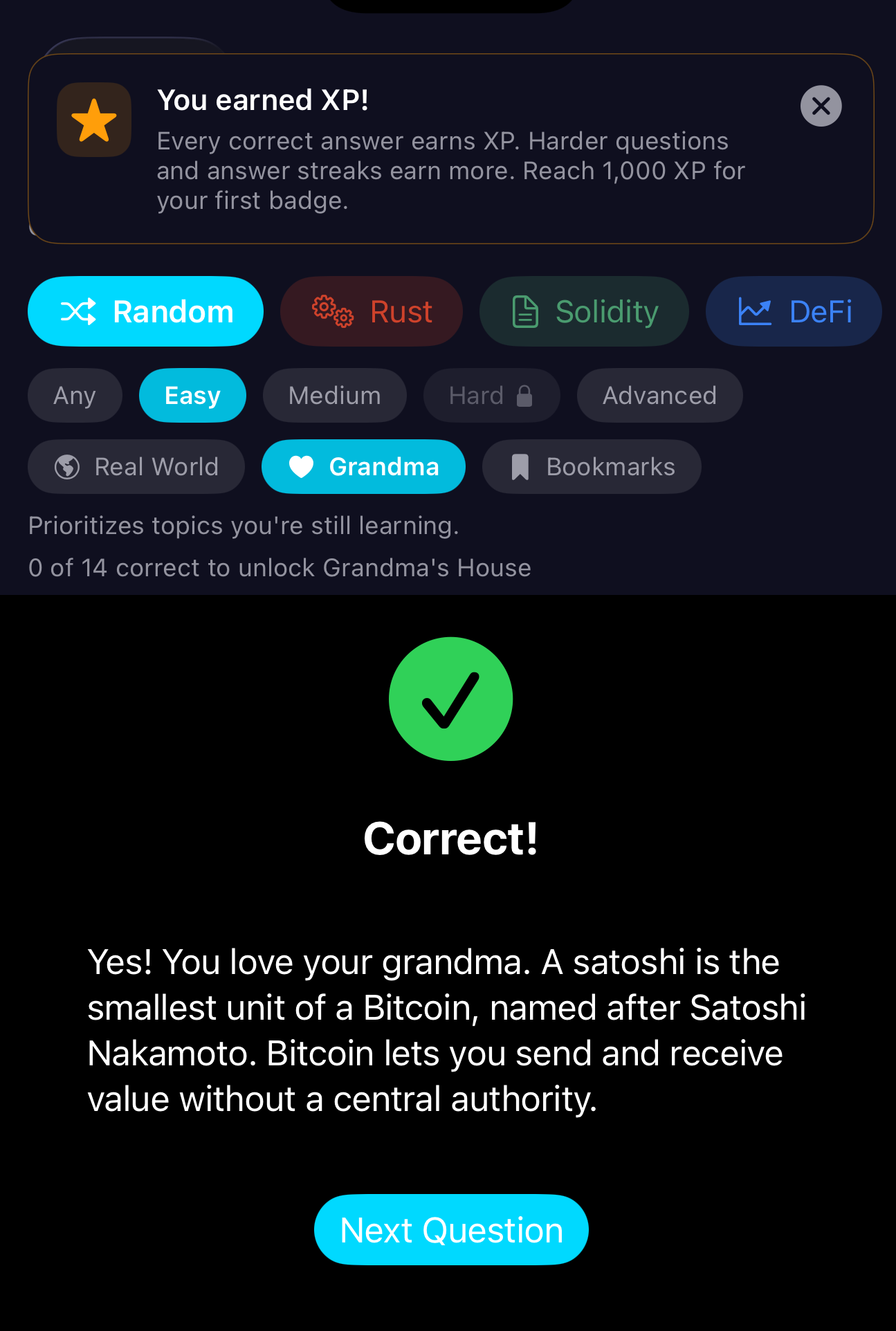
Grandma questions are simple introductions to concepts. They're designed for newcomers—explainable to someone without prior knowledge. Use them to get your bearings in a domain before tackling harder material.
They're typically Easy difficulty, single-step, and available across domains (Rust, DeFi, Solidity, and more). Filter by the Grandma tag in Practice to focus on them. Answer all Easy Grandma questions correctly to unlock Grandma's House. Grandma's House is a special theme (warm cookie-style palette) you can select in Settings once unlocked. Advanced Grandma is a separate, harder tier gated by the Advanced Grandma Challenge.
Exercises
Exercises are full code challenges with reference solutions. Deeper dives when you're ready.
- Multi-step — Same format as Practice exercises: step 1 (tap vulnerable line), step 2 (why vulnerable), step 3 (correct fix).
- Reference solution — After completing an exercise, you can view the full reference solution.
- Difficulty — Filter by Easy, Medium, Hard, or Advanced. Advanced is gated by XP.
Exam
Exam mode prepares you for real security assessments. Timed tests across domains with performance tracking.
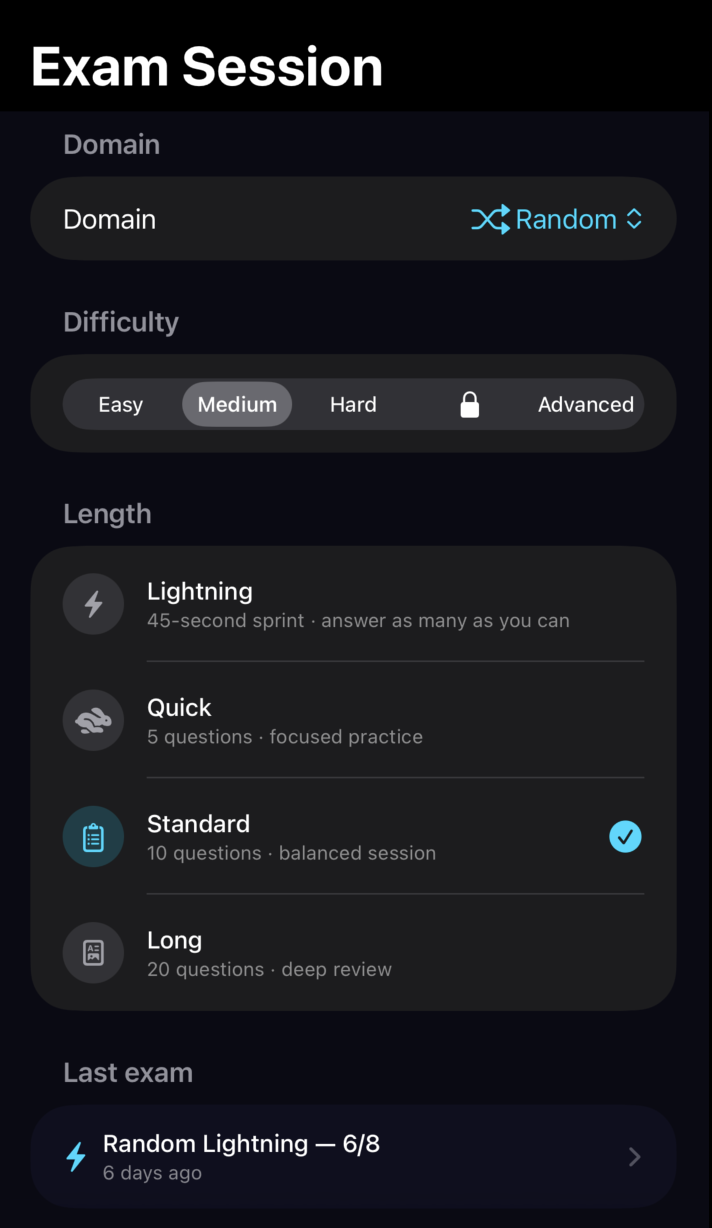
- Standard exam — Set number of questions, timed. Choose domain(s) and difficulty.
- Memory match — Card-flip rounds in the exam flow: pair matching terms or concepts. Deck themes include mixed, opcodes, EIPs, security terms, Rust, DeFi, and chain mechanics.
- Lightning round — Timed sprint with interactive-only questions (tap, swipe, drag, matching; no multiple choice).
- Duration options: 45, 60, or 90 seconds (configurable in Settings).
- No feedback during the round; feedback only at the end.
- Skip counts as wrong but does not deduct XP.
- Beat your best score for a 50 XP bonus.
- Grading — Letter grades (A, B, C, D, F) based on accuracy and time.
- Domain badges — Complete exams in a domain to earn topic-specific badges.
- Advanced tier — Unlock Advanced difficulty in Exam mode at 5,000 XP.
Choose your domain, difficulty, and exam length. Lightning Round duration (45, 60, or 90 seconds) is configurable in Settings, where you can also choose your theme.
Memory Match includes focused opcode and EIP decks so exam practice can drill recognition, definitions, and standards knowledge without turning every round into multiple choice.
Challenges
Special challenges unlock new content and prove your skills.
- Advanced Challenge — Solve a timed puzzle to unlock Advanced difficulty questions. Wrong answer costs XP and triggers a multi-hour cooldown before you can try again. Requires correct reasoning; no spoilers.
- Advanced Grandma Challenge — Answer all Advanced Grandma questions correctly to earn the Grandma's Favorite badge and unlock Advanced Grandma content.
- XP gates — Advanced content (5,000 XP) and Advanced Grandma are gated by progression. Build foundations first.
- Answer flexibility — Challenge answers use fuzzy matching. Multiple valid phrasings are accepted for each question, so you don't need to match a single exact string. Minor variations in wording or spelling may still be marked correct.
EIP Atlas
Searchable ERC and EIP standards. Browse by number or keyword. Each standard can link to "practice this EIP"—questions and exercises that drill that specific standard. Tap the copy icon in the top right to copy a standard's content to share.
Protocol Patterns
DeFi architecture layers and invariants. Browse patterns (lending, AMM, vault, etc.) and "practice this pattern" to reinforce the design and its failure modes. Tap the copy icon in the top right to copy a pattern's content to share.
Glossary
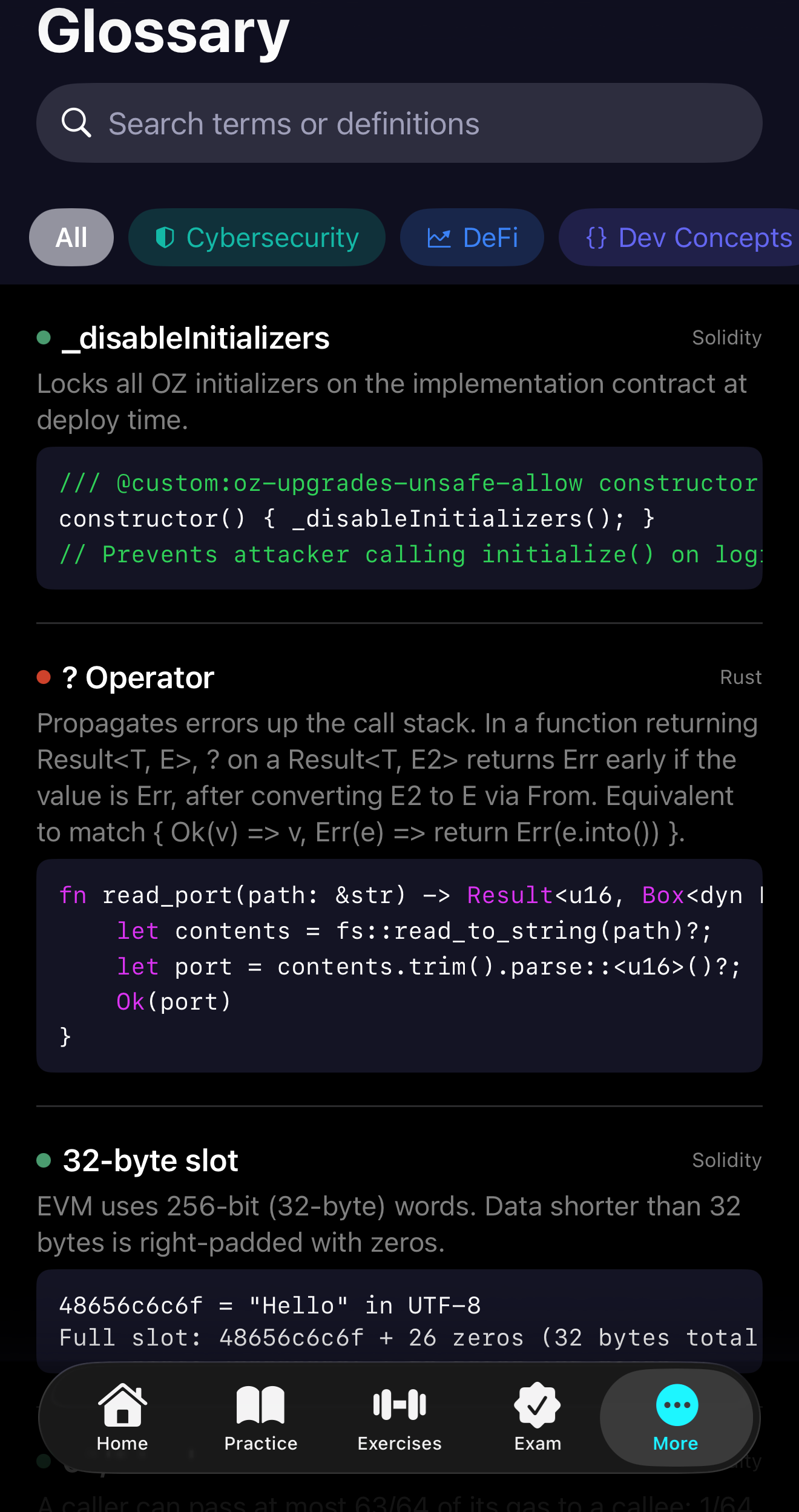
The app includes a built-in glossary of security and DeFi terms. Access it from the More tab. Glossary terms also power the iOS learning widget.
- Domain filter — Filter glossary terms by domain (Exploits, Solidity, DeFi, etc.).
- Search — Find terms by keyword.
- Related terms — Cross-links between related concepts.
- Foundations toggle — Show or hide foundational/prerequisite terms.
- Exploit glossary — Reentrancy (classic, cross-function, read-only), oracle manipulation, flash loans, proxy races, share-price inflation, governance takeover, and other vulnerability classes. Definitions include real-world examples (TheDAO, bZx, Beanstalk, Indexed Finance, Cream, Euler, Sigma.Money).
- Foundational terms — Perpetuals, leverage, margin, funding rate, and core DeFi concepts.
- In-context — Questions with
termandterm_definitionshow the definition in the feedback. A glossary hint may appear when viewing feedback with term definitions. - Widget deep links — Tapping a glossary-term widget can open ZeroDay Dev directly to that term in the glossary.
Learning Widget
ZeroDay Dev includes a Home Screen and Lock Screen learning widget called ZeroDay Dev Review. It rotates learning content from an app-group snapshot, so the widget can show review material without moving the app's local database into the widget extension.
- Content modes — Mixed, Glossary terms, Practice questions, or Recent exploits.
- Domain filter — All domains or a specific domain. Domain filtering applies to glossary and practice content.
- Rotation interval — Every hour, every 4 hours, daily, or weekly.
- Style controls — Optional custom text color, Small/Standard/Large text size, and Standard background or Just text / minimal mode.
- Supported families — Lock Screen inline, Lock Screen rectangular, Home Screen small, Home Screen medium, and Home Screen interactive.
- Privacy note — Widget text may be visible before you unlock your phone, so choose content/style settings with that in mind.
Interactive widget
The Home Screen interactive widget lets you engage with content directly from the Home Screen without opening the app. Use it to advance through questions or review material in place. Select the interactive size when adding the widget and configure it the same way as other sizes in More → Learning Widget → Configure widget.
Configure the widget in ZeroDay Dev
Open More → Learning Widget → Configure widget. Pick what the widget rotates, choose a domain, set the refresh interval, and adjust the text/background style. Opening the widget settings also refreshes the shared widget snapshot; if content looks stale, open the app once and revisit this screen.
Add it to the Home Screen
- Long-press an empty area on the Home Screen.
- Tap + in the top-left.
- Search for ZeroDayDev.
- Pick the learning widget size and tap Add Widget.
Add it to the Lock Screen
- Long-press your Lock Screen and tap Customize.
- Select Lock Screen.
- Tap the widget area.
- Add the ZeroDayDev learning widget and tap Done.
September 8, 2026 release preview
This snapshot describes the latest app repository content. Mobile store rollout is pending, so your installed version may not yet include every change. The curriculum contains 6,000+ challenges, 171 Build lessons, and 99 Deep Dive journeys across 17 shelves.
- Build practice — SSH key preparation and server connection lessons use a bounded, in-memory training shell. They do not create real keys or open real connections. Hints repeat study concepts and worked examples, while reorderable helpers include Rust's match arrow.
- Expanded journeys — Bitcoin and its related networks, NEAR, NEAR Intents, Bash scripting, caching in Systems & Cloud Security, Rust networking, and OWASP API security labs extend the learning paths. Zcash coverage follows Orchard through Ironwood, with dated migration figures.
- Incidents — The public catalog and app feed now include the September 6 Liquid peg-out incident as developing. Cause and loss remain unconfirmed. Updated app browsers merge bundled and remote incidents so an older feed cannot hide newer bundled alerts, including records without practice questions.
- Organization and editing — Shelf and More ordering persist through drag gestures. Build help stays over the editor, and study hints provide more context on both iOS and Android.
- Local Tutor — The current interface returns reviewed retrieval results. Generated answers remain disabled while model and physical-device release evaluations are incomplete.
Recent content updates
Recent app updates expanded the curriculum and reference material in areas that are visible across Practice, Exploits, Deep Dives, and the widget.
- Litecoin MWEB incident — Updated with the clarified March metadata-revalidation root cause, April mutated-block handling failure mode, and official reference link.
- KelpDAO LayerZero rsETH incident — Added as a real-world cross-chain/LST incident pack with practice coverage.
- Lawful privacy hygiene — Added high-level privacy and fund-tracing reference material focused on protocol visibility tradeoffs, compliance framing, and investigator anchor points.
- EIP-7732 / ePBS — Added proposer-builder separation reference material and related standards practice.
- Share and copy actions — Exploit incidents, EIP Atlas entries, and Protocol Patterns can be copied for study notes or sharing.
- Opcode/EIP Memory Match — Exam mode includes matching decks for opcodes, EIPs, security terms, Rust, DeFi, and chain mechanics.
- Glossary/widget pool — Widget snapshots include glossary terms, up to 250 practice prompts, and recent exploit cards from the browse payload.
On-chain User Feedback
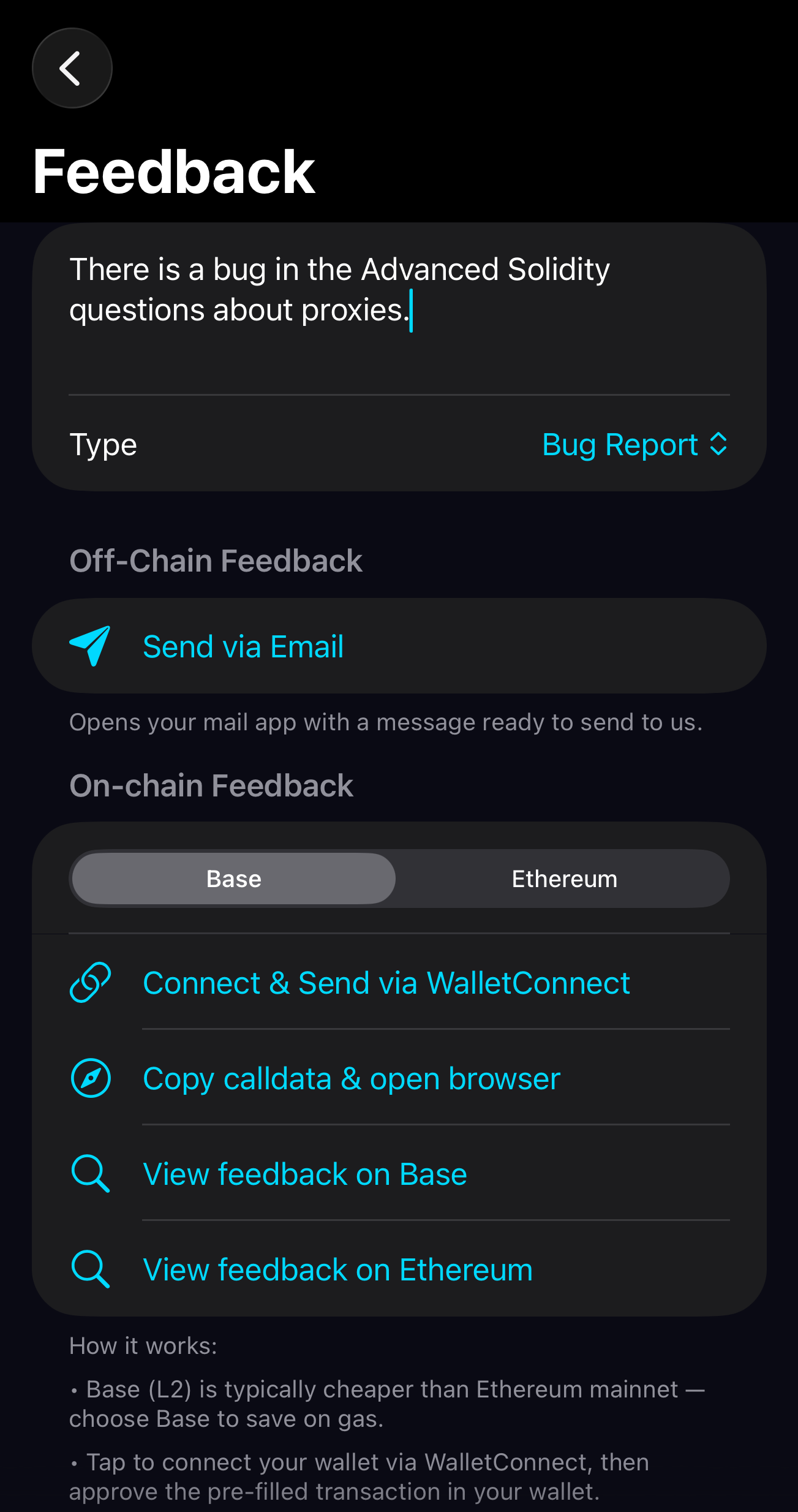
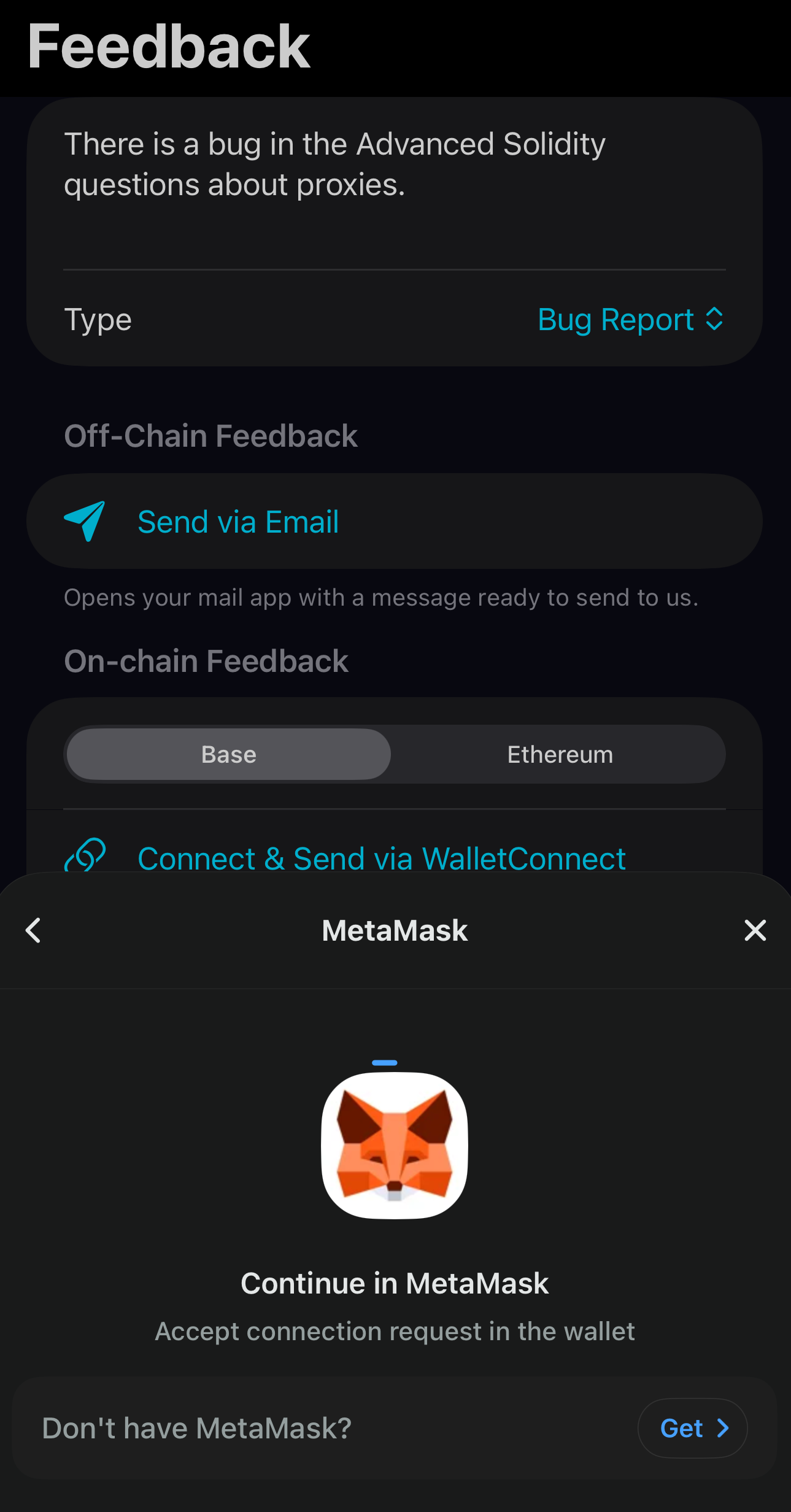
You can submit feedback on-chain via WalletConnect. Your feedback is stored permanently on Base (default) or Ethereum.
- Connect & Send — Tap "Connect & Send via WalletConnect" in the feedback flow. Connect your wallet, approve the pre-filled transaction.
- Chains — Base (chain ID 8453) is the default. Ethereum is also supported.
- Contract addresses
- View feedback — Use the links above to view all submitted feedback (FeedbackSubmitted events) on each contract.
- Copy calldata — If WalletConnect isn't available, you can copy the calldata and open your browser wallet to send manually.
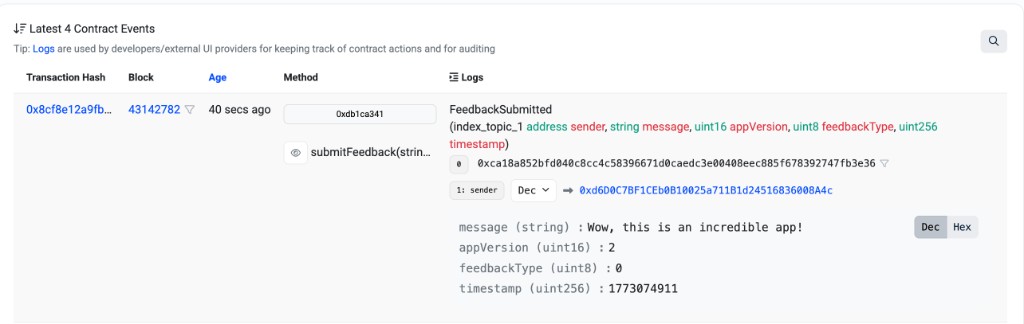
Each submission emits a FeedbackSubmitted event with your message, app version, feedback type, and timestamp—visible on block explorers.
On block explorers, each submission appears as a FeedbackSubmitted event: